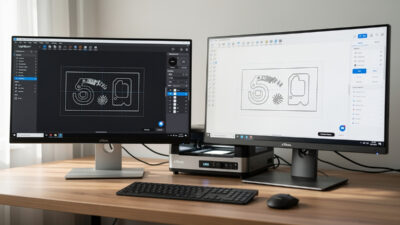
Free Laser Engraving Software: LaserGRBL, Inkscape, and Beambox
Free laser engraving software covers basic needs adequately for entry-level diode lasers. In ~40 words: LaserGRBL is the most-used free option for GRBL hardware (most diode lasers under $400), Inkscape with the Lasertools extension covers cross-platform vector workflows, and Beambox open-source serves specific hardware. None match LightBurn’s depth, but combined they handle simple cuts and engravings on tight budgets.
This guide compares the three viable free options for laser cutting and engraving in 2026, shows their limitations against LightBurn, and identifies which free tool fits which workflow. By the end you’ll know whether starting free is sustainable for your goals or whether the $60 LightBurn investment makes more sense.
LaserGRBL: The Most-Used Free Option
LaserGRBL is Windows-only, free, open-source software designed specifically for GRBL-compatible diode lasers. As of 2026 it supports virtually every Atomstack, Ortur, Sculpfun, Two Trees, and generic-brand diode laser running standard GRBL firmware.
Installation is straightforward — download from lasergrbl.com, run the installer, plug in your laser. LaserGRBL auto-detects most GRBL hardware. The interface is dated (looks like Windows XP-era software) but functional and lightweight.
What LaserGRBL does well: simple vector cuts (SVG, DXF imports), basic photo engraving with 4 dithering modes (Floyd-Steinberg, Stucki, Ordered, Atkinson), G-code preview, and a built-in material library with crowd-sourced settings. For straightforward jobs on a basic diode laser, it covers 80% of what LightBurn does.
What LaserGRBL doesn’t do well: rotary support is limited (works with some setups, fails with others), photo engraving algorithms are simpler than LightBurn’s, layer management is basic (per-shape settings exist but feel grafted on), no Mac or Linux versions exist (Wine on Linux works but isn’t officially supported).
Use LaserGRBL when: budget is tight, hardware is entry-level diode (under $400), workflow is simple cuts and basic engraves, and Windows is your operating system. Switch to LightBurn when production volume increases, photo engraving becomes important, or you add a CO2 laser or rotary.
Inkscape with Laser Extensions
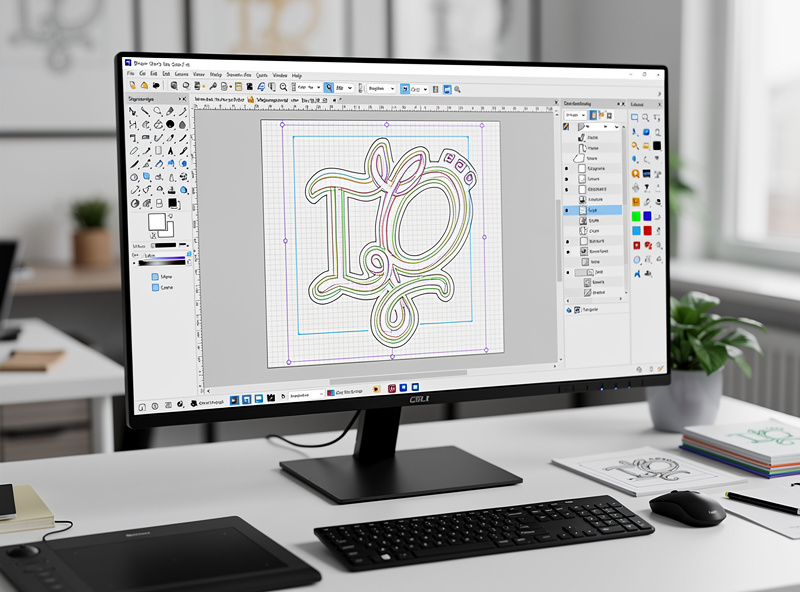
Inkscape is the open-source equivalent of Adobe Illustrator — a professional-grade vector design tool. It’s free, cross-platform (Windows, macOS, Linux), and the design tools genuinely compete with paid alternatives. For laser cutting, Inkscape extensions add G-code export.
The most-used extension is Inkscape-Lasertools, which converts Inkscape paths into G-code for GRBL hardware. Setup: design in Inkscape, mark cut/engrave layers with specific colors, run the Lasertools extension, save the G-code, send to your laser via a separate G-code sender (LaserGRBL itself works for this).
The Inkscape + extension workflow is the only viable free option for Mac and Linux users. It’s also the right path for users already comfortable with Inkscape who don’t want to learn a separate laser-specific application.
The cost is workflow complexity. Vector design in Inkscape, G-code generation via extension, then sending via separate software — three steps where LightBurn handles all three in one application. For occasional laser work, the workflow is acceptable; for daily production use, the friction adds up.
For users coming from professional vector design backgrounds (Illustrator, Affinity Designer), Inkscape’s design tools feel familiar and powerful. For users new to vector design, Inkscape’s learning curve adds significantly to the laser learning curve. Our complete laser workflow guide explains how design and laser execution integrate.
Beambox: The Open-Source Specific-Hardware Option
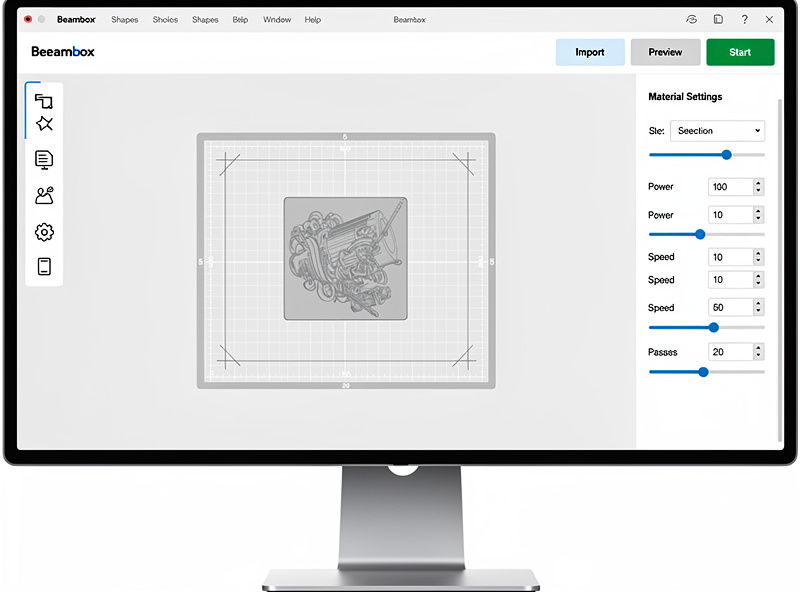
Beambox is open-source software originally developed for FlashForge’s Beambox laser and now used with several other manufacturers’ hardware. It’s cross-platform (Windows, macOS, Linux), simpler than LightBurn, and free.
Beambox’s strength is simplicity — the interface is closer to xTool Creative Space than to LightBurn, with material profiles and one-click power/speed selection. For users who want a polished free option without LaserGRBL’s dated UI, Beambox is the answer.
The limitation is hardware support. Beambox works well with FlashForge Beambox, FlashForge Adventurer lasers, and a handful of other brands. For non-supported hardware, Beambox often won’t connect or won’t fully control the laser. Verify your specific laser is supported before committing time to learning Beambox.
Use Beambox when: you have specifically supported hardware, you want a polished UI without paying for LightBurn, and you’re cross-platform (Mac/Linux). Otherwise LaserGRBL covers the same use case with broader hardware support.
Direct Comparison: LaserGRBL vs LightBurn
The most common upgrade path is LaserGRBL → LightBurn after a few months of laser ownership. Here are the specific differences that drive most users to upgrade.
Photo engraving: LightBurn has 8 dithering algorithms tuned per photo type; LaserGRBL has 4 generic modes. The quality difference is visible on portraits — Jarvis dithering in LightBurn produces noticeably smoother skin than any LaserGRBL option.
Layer management: LightBurn has color-coded layers with per-layer power, speed, passes, and air-assist; LaserGRBL has per-shape settings that work but feel less organized for multi-layer jobs.
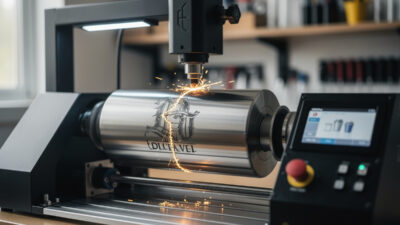
Rotary support: LightBurn has full rotary support including chuck rotaries, taper compensation, and the xTool RA2 Pro; LaserGRBL has basic roller-rotary support that works for tumblers but lacks features.
Material library: LightBurn’s library is community-maintained with thousands of profiles; LaserGRBL’s library is smaller and less curated.
Cross-platform: LightBurn runs on Windows, macOS, Linux; LaserGRBL is Windows-only.
Production tools: LightBurn has saved-job library, batch processing, kerf compensation, and camera alignment; LaserGRBL has minimal production tooling.
The break-even point is roughly 10-20 hours of use. Below that, LaserGRBL’s free price wins. Above that, LightBurn’s $60 saves enough time per job to pay back quickly. The complete laser software comparison covers the broader picture.
When to Upgrade From Free to Paid
The signals that you’ve outgrown free laser software:
Photo engraving requests are increasing. If photos make up 25%+ of your laser work, LightBurn’s algorithm depth pays back almost immediately. Free tools’ photo quality limitations become customer complaints.
Multi-layer jobs are common. Engrave + score + cut on the same workpiece is awkward in LaserGRBL and Beambox. LightBurn’s layer system makes these jobs significantly faster.
Rotary work is starting. Tumbler engraving, ring engraving, glass engraving — all require rotary support. LightBurn’s rotary depth makes the difference between functional and frustrating.
You’re producing for sale. Etsy orders, custom requests, production runs — the time saved per job in LightBurn versus LaserGRBL adds up quickly. A laser business doing 5 jobs per week saves about 2 hours weekly with LightBurn over LaserGRBL.
You’re switching to a CO2 laser. CO2 hardware (OMTech, Boss, FSL) is more capable than diode but also more complex. LightBurn’s Ruida controller support is mature; LaserGRBL works less well with CO2 hardware overall.
For users who’ll stay on entry-level diode hardware doing simple cuts and basic engraves indefinitely, free software remains adequate. For everyone else, the LightBurn upgrade is one of the highest-ROI laser purchases possible. See our first laser purchase guide for hardware decisions that influence software choice.
Frequently Asked Questions
Can I learn laser cutting on free software?
Yes — LaserGRBL or Inkscape with extensions handle the basics adequately for the first 20-50 hours of laser use. Once you’re producing regularly, the friction of free tools (limited photo engraving, basic rotary support, dated UI) becomes the bottleneck. The $60 LightBurn upgrade typically pays back within a month of upgrading.
Why is LaserGRBL Windows-only?
LaserGRBL is built on .NET Framework, which is Windows-native. Cross-platform versions (Wine on Linux, alternatives on Mac) work intermittently but aren’t officially supported. For Mac and Linux users, Inkscape + Inkscape-Lasertools is the practical free alternative.
Can free software do everything LightBurn does?
No. Free tools cover roughly 70-80% of LightBurn’s feature set with significantly more workflow friction. Specific gaps: photo engraving algorithm depth, professional layer management, rotary calibration tools, kerf compensation, camera alignment, and saved-job library. For occasional use, the gaps don’t matter; for production, they do.
Is Beambox the same as Beambox Studio?
No. The free Beambox covered here is open-source software for laser cutting. Beambox Studio is FlashForge’s commercial software for their Beambox hardware specifically. The two have similar names but different feature sets and licensing. The free Beambox supports more hardware; Beambox Studio is FlashForge-only.
Can I use Inkscape with LightBurn?
Yes — this is actually the standard professional workflow. Design in Inkscape (powerful free vector tools), export as SVG, import into LightBurn for laser-specific operations (layer setup, cut order, kerf compensation). Many production users use this combination instead of LightBurn’s built-in vector tools.
Why does LightBurn cost $60 when LaserGRBL is free?
LightBurn is commercial software with paid developers, full-time customer support, regular updates (every 4-6 weeks), professional documentation, and active development. LaserGRBL is volunteer-developed open-source software with slower update cycles and community-only support. The $60 funds the development that drives LightBurn’s feature lead.
Can I switch from LaserGRBL to LightBurn without losing my designs?
Yes — vector designs (SVG, DXF, AI) transfer between applications. LaserGRBL doesn’t store anything proprietary that can’t be exported. Material settings (power, speed, passes) need to be re-entered in LightBurn, but the vector geometry transfers cleanly. Plan a few hours of re-configuration during the switch.