LightBurn vs xTool Creative Space: Which Wins for xTool Owners
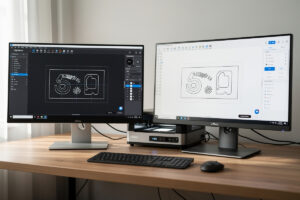
The LightBurn vs xTool Creative Space question is asked by every new xTool owner — and the answer is “use both” for most users. In ~40 words: xTool Creative Space wins on speed-to-first-result and material library accuracy for xTool hardware; LightBurn wins on photo engraving depth, third-party laser support, and production workflow tools. Most serious xTool users run both software packages and pick per job.
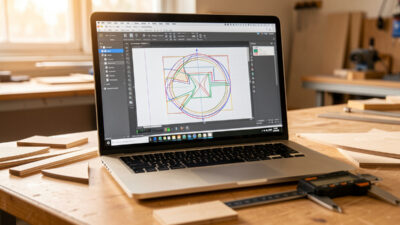
This guide compares the two head-to-head across the dimensions that show up in real laser work: material profile quality, photo engraving capability, rotary support, layer management, and learning curve. The conclusions hold for any xTool user trying to decide which software to invest learning time in.
Material Profile Accuracy and Library
Material profiles — the pre-tested power and speed combinations for specific materials — are the single biggest differentiator between these applications for xTool owners. Bad profiles mean wasted material; good profiles mean first-cut success.
xTool Creative Space ships with over 200 factory-tested material profiles for xTool’s curated material list. These include xTool’s own materials (the ones sold on xTool’s store) plus common third-party options. Power and speed values are measured on actual xTool hardware in xTool’s labs and verified.
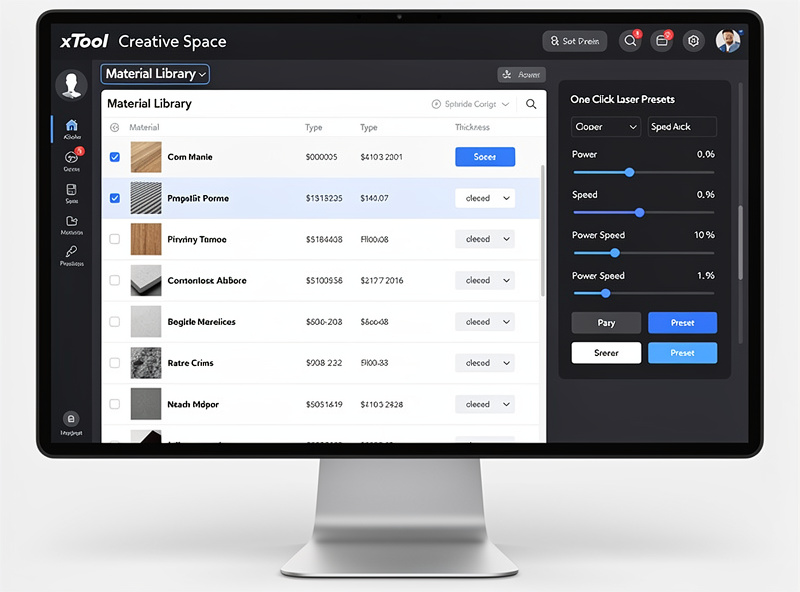
LightBurn’s material library comes from the community — thousands of crowd-sourced profiles for hundreds of materials across many laser hardware models. The breadth is wider than xTool CS but the quality varies. A profile labeled “3mm plywood” might be tested on different plywood batches with different binder content. Always run a test cut to verify before committing to large production work.
For xTool hardware specifically: xTool CS profiles match the hardware perfectly because xTool engineers tested on the same machines you own. LightBurn profiles for the same hardware are either community-contributed (variable quality) or generic GRBL profiles (need adjustment). For new xTool owners, CS is the safer starting point.
Photo Engraving Depth
Photo engraving is where LightBurn pulls ahead decisively. LightBurn offers eight dithering algorithms (Ordered, Stucki, Atkinson, Floyd-Steinberg, Jarvis, Newsprint, Halftone, and Bayer 8×8). Each suits a different image type — Floyd-Steinberg for general photos, Jarvis for portraits with smooth gradients, Stucki for landscapes with sharp detail, Atkinson for high-contrast subjects.
xTool Creative Space offers fewer dithering options — typically a “default photo” mode plus a few preset modes (sketch, halftone, basic dither). The presets work well for typical photos but produce noticeably softer results on faces and high-contrast subjects than LightBurn’s algorithm-specific tuning.
For users producing photo-engraved gifts, memorial products, or detailed portraits, LightBurn’s photo-engraving depth justifies the $60 license cost on its own. xTool CS is fine for occasional photo work; for production photo engraving, LightBurn is the right tool.
Beyond dithering, both applications support image resolution control, contrast/brightness adjustment, and gamma correction inside the software. LightBurn’s controls are slightly more granular; xTool CS’s are simpler but cover the common cases. The laser materials guide covers which materials reward photo-engraving depth most.
Rotary Attachment Support
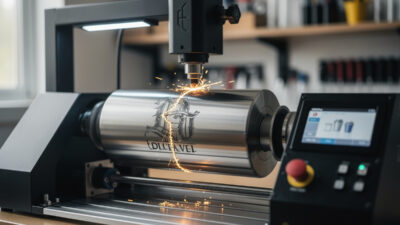
Rotary support is split: xTool CS handles xTool’s RA2 Pro flawlessly, LightBurn handles every other rotary attachment well. Owning the xTool RA2 Pro means xTool CS is the better choice for that hardware specifically; owning a third-party rotary (or a DIY chuck) means LightBurn is the better choice.
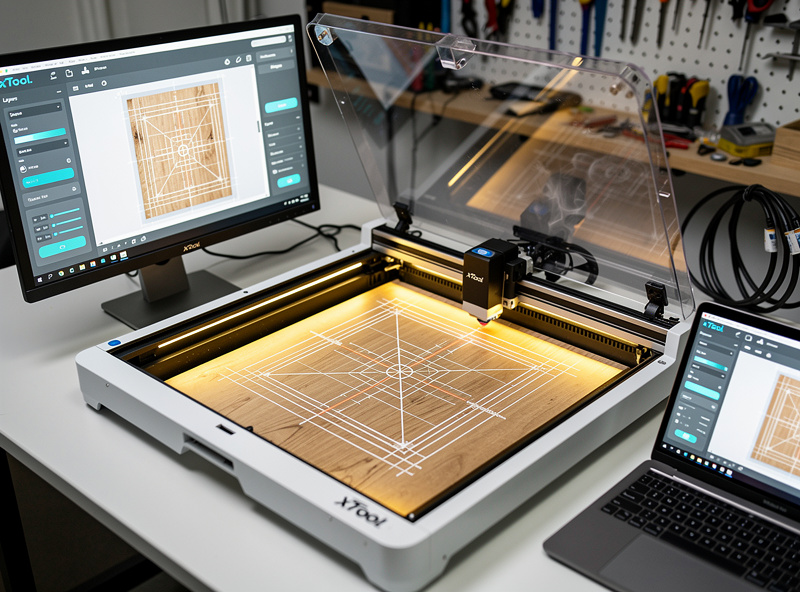
xTool CS’s RA2 Pro integration includes one-click rotary calibration, automatic chuck-vs-roller detection, and the cylindrical surface mapping that makes engravings appear correctly on tapered objects (wine bottles, certain tumblers). Setting up the RA2 Pro in CS takes 5-10 minutes; setting up an equivalent rotary in LightBurn takes 30-45 minutes the first time.
For users with both — xTool RA2 Pro for tumblers and a separate chuck rotary for rings or other work — running xTool CS for the RA2 jobs and LightBurn for everything else is the standard approach. Most production rotary shops actually do exactly this.
Layer Management and Workflow
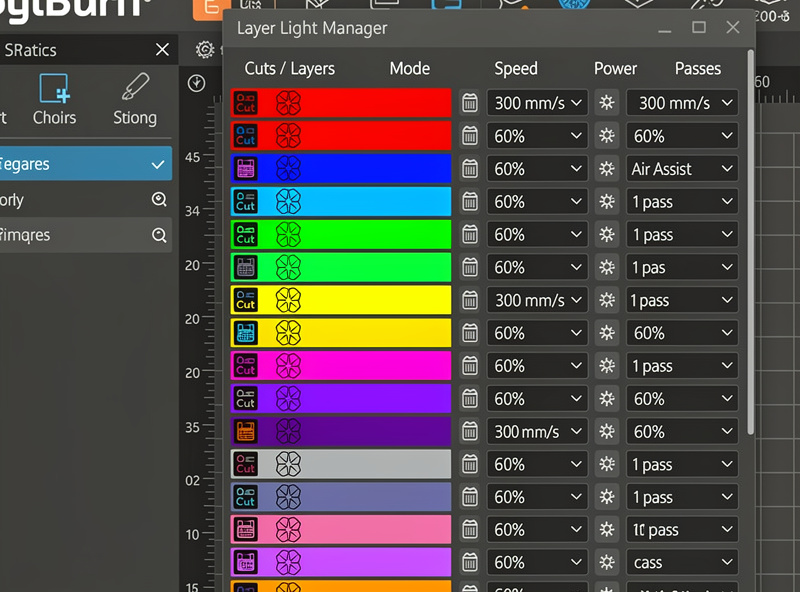
LightBurn’s layer management is more powerful for complex jobs. Each shape gets assigned to a color-coded layer; each layer has its own power, speed, passes, dithering, and air-assist settings. Reordering layers is drag-and-drop. Multi-layer jobs (engrave + score + cut on the same workpiece) are LightBurn’s specialty.
xTool CS handles layer management adequately for most jobs. Each shape can be set to “engrave,” “score,” or “cut” with per-shape settings. The interface is simpler than LightBurn’s; common workflows are faster, but complex multi-layer jobs require more clicks.
For repeat production work where you slice the same job many times, LightBurn’s saved-job library beats xTool CS. LightBurn lets you save a full job (vector geometry + layer settings + material profile) and reload identically; xTool CS saves jobs but with less granularity in the saved data.
Learning Curve and Documentation
xTool CS wins decisively on learning curve. New xTool owners can produce their first finished piece within 30-45 minutes of unboxing. The defaults work, the material library covers common needs, and the camera alignment is built-in.
LightBurn requires 2-4 hours of learning before producing finished pieces. The interface is denser, the layer system requires understanding, and material setup needs manual entry or community profile import. The documentation (LightBurn’s official manual, plus an active YouTube tutorial scene) is excellent but does need to be consumed.
Once past the learning curve, LightBurn is faster for advanced work. xTool CS stays simpler — a feature for some users, a limitation for others. For users who plan to grow into production laser work, the LightBurn investment pays back. For users who’ll mostly do simple cuts and engraves, xTool CS is sufficient indefinitely.
The complete laser workflow doesn’t change between applications — see our laser workflow guide for the steps that apply regardless of software.
When to Pick Which (Decision Rules)
Practical decision rules based on workflow:
Pick xTool CS as your primary software if: You only run xTool hardware. You mostly do simple cuts, score, and engrave operations. Photo engraving is occasional rather than primary. You value setup speed over advanced control.
Pick LightBurn as your primary software if: You run multiple laser brands or plan to. Photo engraving is part of your regular workflow. You produce repeat orders that benefit from saved jobs. You’ll do rotary work on non-xTool rotaries. Production volume justifies the learning curve.
Run both side-by-side if: You have an xTool with the RA2 Pro AND want LightBurn’s photo-engraving depth. This is a common setup for production shops doing both tumbler engraving (xTool CS) and gift-photo engraving (LightBurn). The dual-software workflow takes a week to internalize.
Frequently Asked Questions
Can I run xTool S1 with LightBurn?
Yes — LightBurn supports the xTool S1 via its built-in driver. The connection is reliable and most features work. What’s lost: the camera alignment, the smart material detection, and the RA2 Pro integration that xTool CS handles natively. For most jobs LightBurn works fine on the S1; for camera-aligned work or RA2 work, switch to xTool CS.
Is xTool CS really free or are there hidden costs?
xTool CS is genuinely free — no subscription, no premium tier, no usage limits. xTool monetizes through hardware sales and material sales (their curated ‘Brand’ materials). The software itself remains free indefinitely as a customer-acquisition tool. There’s no upgrade path to a ‘pro’ version because there isn’t one.
Which has better photo engraving — LightBurn or xTool CS?
LightBurn wins on photo engraving depth. Eight dithering algorithms tuned for different photo types versus xTool CS’s smaller preset selection. For occasional photos, xTool CS produces acceptable results; for production photo engraving on portraits, memorial pieces, or wedding gifts, LightBurn’s quality difference is visible.
Can I export LightBurn projects to xTool CS?
Partially. Vector geometry exports as SVG and imports cleanly into xTool CS. Layer settings (power, speed, passes) reset on import — you’ll need to reconfigure operations in xTool CS. Material profiles don’t transfer because the format differs. The reverse (xTool CS to LightBurn) has the same limitations.
Does xTool CS work on Linux?
No — xTool CS is Windows and macOS only as of 2026. LightBurn supports Windows, macOS, and Linux. For Linux laser users, LightBurn is the only major commercial option; alternatives are LaserGRBL (Windows only via Wine) or Inkscape with extensions.
How often does xTool CS update its material library?
xTool typically adds 10-30 new material profiles per quarter, focused on materials xTool sells. Community contribution to the xTool CS material library is limited; if you cut materials xTool doesn’t sell, expect to do your own testing. LightBurn’s community library updates more frequently but with variable quality.
Is the xTool RA2 Pro worth it if I already use LightBurn?
Yes for tumbler / cylinder work — the RA2 Pro is well-engineered and the xTool CS integration with it is excellent. But you’ll likely use xTool CS for those jobs specifically and LightBurn for everything else. Some users buy a different rotary (chuck or roller from OMTech, Atomstack) for LightBurn-only workflows; both approaches work.