Vector vs Raster Laser Engraving: Which to Use When
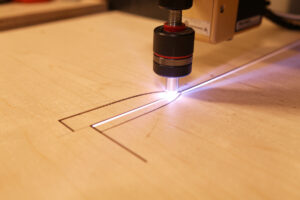
The choice between vector vs raster laser engraving is the single decision that sets your run time, your edge quality, and whether the job even makes sense to attempt. The short answer: vector traces lines for cutting and scoring, raster sweeps back and forth to fill areas and reproduce photos. A vector outline of a logo can finish in under a minute; the same logo as a filled raster block might run twenty minutes because the head has to paint every row.
I make this call on every file before anything else, across the xTool S1, the OMTech Polar 350, and the fiber marker. Get it right and a job is fast and clean. Get it wrong and you either waste an hour filling something that should have been a quick outline, or you try to “cut” a photo that was never going to cut. This is part of the larger laser file design and prep stage, and it is the part beginners most often get backwards.
What vector and raster actually mean to a laser
A vector is a mathematical path — a line the laser head follows from point to point at a set power and speed. A raster is a grid of dots; the head sweeps left-to-right down the whole image, firing or skipping per pixel to build up a filled area. They are two entirely different motions, and the file tells the machine which one to perform for each shape.
In LightBurn this lives in the layer mode. A Line layer runs the path as a vector — that is your cutting and scoring. A Fill layer sweeps the enclosed area as a raster — that is your engraving and photo work. The same outline can be either, depending on which mode you assign, which is exactly why understanding the difference is the whole game. The deeper layer mechanics are in my guide on fill vs line mode in LightBurn.
When vector wins
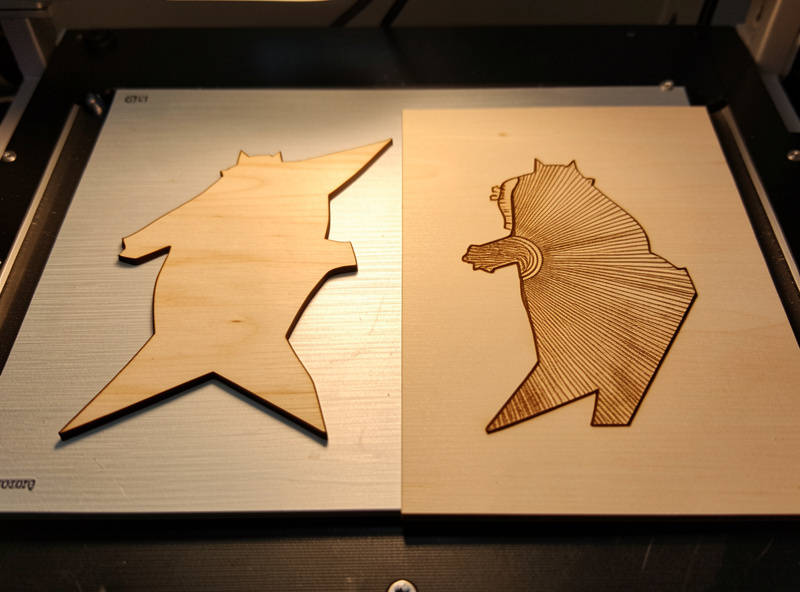
Vector is the right call any time the result is a line: cutting parts out, scoring fold lines, or rendering crisp single-stroke text and line-art logos. Because the laser only travels the path once, vector is dramatically faster and the edges are as sharp as your focus and kerf allow. Almost every cut file should be pure vector.
The catch is that vector cannot fill or shade. It can only draw outlines. If your artwork has solid areas, gradients, or photographic detail, vector will reduce it to a wireframe. For line work, though, nothing beats it — a scored monogram on a leather coaster runs in seconds where a filled version would take minutes and risk scorching the surface.
When raster wins
Raster is what you reach for whenever the design has area: a solid filled logo, a textured background, a grayscale photo, or any shaded artwork. The sweeping fill is the only way a laser can reproduce tone and solid coverage. Photo engraving is raster by definition, paired with a dithering algorithm that turns continuous tones into a pattern of dots, the modes for which are detailed in the official LightBurn documentation.
The trade-off is time and heat. A raster fill sweeps every row of the image, so a large filled area can run ten to twenty times longer than the equivalent outline, and all that dwell time puts heat into the material. On wood that means more scorching unless air assist is doing its job. I treat any large solid fill as a deliberate choice, not a default. For the photo side specifically, see photo engraving in LightBurn and preparing photos for laser engraving.
Vector vs raster compared
| Factor | Vector (Line) | Raster (Fill) |
|---|---|---|
| Laser motion | Follows the path once | Sweeps every row of the area |
| Best for | Cutting, scoring, line-art, crisp text | Solid fills, gradients, photos, textures |
| Run time | Fast — seconds to minutes | Slow — minutes to hours on large fills |
| Edge quality | Sharp, defined by kerf and focus | Soft, defined by line interval and dithering |
| Heat into material | Low — brief dwell | High — long dwell, more scorch risk |
| File type | SVG, DXF, AI | PNG, JPG, high-res raster |
Most real jobs are both
The practical reality is that good projects mix the two on separate color layers. A cutting board with an engraved monogram and a cut-out handle uses a Fill layer for the monogram and a Line layer for the perimeter, each with its own settings, running in a deliberate order. I engrave first, then cut, because once the part is cut free it can shift and any later engraving lands crooked.
Organizing those layers cleanly is the heart of file prep. I keep cut lines on one color, score lines on another, and fills on a third, so the LightBurn preview shows me exactly what each operation will do before I commit material. If your file mixes a filled logo and cut lines on the same layer, the machine cannot tell them apart and you will get one operation applied to both.
Scoring: vector at low power
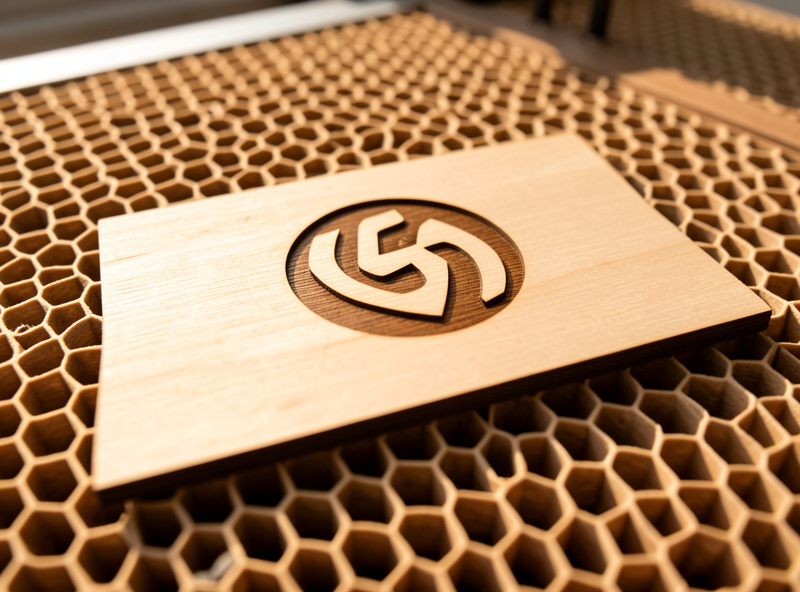
There is a useful middle ground that confuses people: scoring. A score is still a vector operation — the head follows the line once — but at low enough power that it marks or grooves the surface instead of cutting through. It gives you crisp engraved-looking lines at vector speed, which is perfect for fold lines, outlines, hatching, and fine detail that would be slow and scorched as a raster fill.
I lean on scoring constantly to keep run times sane. A decorative border or a line-art illustration that someone might instinctively set as a raster fill almost always looks better and runs in a fraction of the time as a scored vector. The only thing to dial in is power and speed: too hot and a score starts to cut through thin stock, too cold and it barely marks. A quick test on scrap settles it, the same materials-test-card habit I use for everything else on the bench.
The conversion trap: vector to raster and back
Two conversion mistakes waste the most material. The first is a vector that silently becomes a raster — export a cut file through the wrong format or flatten it, and your clean outline arrives as a fuzzy filled image the laser tries to engrave instead of cut. Always confirm a cut file is still vector after export; the format notes are in SVG files for laser cutting.
The second is trying to vector-trace a photo to “make it cut.” Image trace turns a raster into vector paths, which is great for converting a clean logo into a cuttable outline, but a photograph traced this way becomes a tangle of thousands of nodes that engraves as noise. Trace works for line-art logos, not portraits. The honest method for each is in image trace and bitmap engraving, and cleaning up traced paths is a job for the node editing guide.
How I decide in practice
My rule of thumb takes about two seconds per element. Is it a line, an outline, or text I want crisp? Vector. Is it a solid area, a gradient, or a photo? Raster. Does the piece need both? Split them onto separate color layers and set the order so engraving happens before any cut frees the part. Then I preview the whole job in LightBurn before the head moves, because the preview shows raster fills as solid swept blocks and vector paths as thin lines — a glance tells me if anything is assigned wrong.
That preview habit is the cheapest insurance in the workflow. A misassigned layer that turns a quick scored outline into a twenty-minute raster fill is obvious the moment you look at the preview, and invisible if you skip it. Whatever the file says, air assist runs on every job and the machine is never left unattended while a long raster fill grinds through.
Frequently Asked Questions
What is the difference between vector and raster laser engraving?
Vector engraving follows a line path once, which the laser uses for cutting, scoring, and crisp text. Raster engraving sweeps back and forth filling an area, which is how the laser reproduces solid fills, gradients, and photographs. Vector is fast and sharp; raster is slower and renders tone.
Is vector or raster faster on a laser?
Vector is far faster because the head travels each line only once. A raster fill sweeps every row of the area, so a large filled design can run ten to twenty times longer than the equivalent vector outline, and it puts more heat into the material.
Can you laser engrave a photo with vector?
No. Photographs have continuous tone that only raster engraving can reproduce, paired with a dithering algorithm. Tracing a photo into vector paths creates thousands of nodes that engrave as noise. Vector tracing is for clean line-art logos, not portraits.
Should cut files be vector or raster?
Cut files must be vector. The laser can only cut by following a path, so cut and score lines have to be true vector geometry on a Line layer. If a cut file imports as a raster image, it was flattened during export and will not cut correctly.
Can one file have both vector and raster?
Yes, and most real projects do. Put cut and score lines on vector Line layers and any fills or photos on raster Fill layers, each with its own color and settings. Run engraving before cutting so the part does not shift after it is cut free.